
There are various ways to add an email signature to your outgoing emails, to ensure your signature is visible to most people, we use the html version, using one of the files & instructions below.
-
- Download the html file
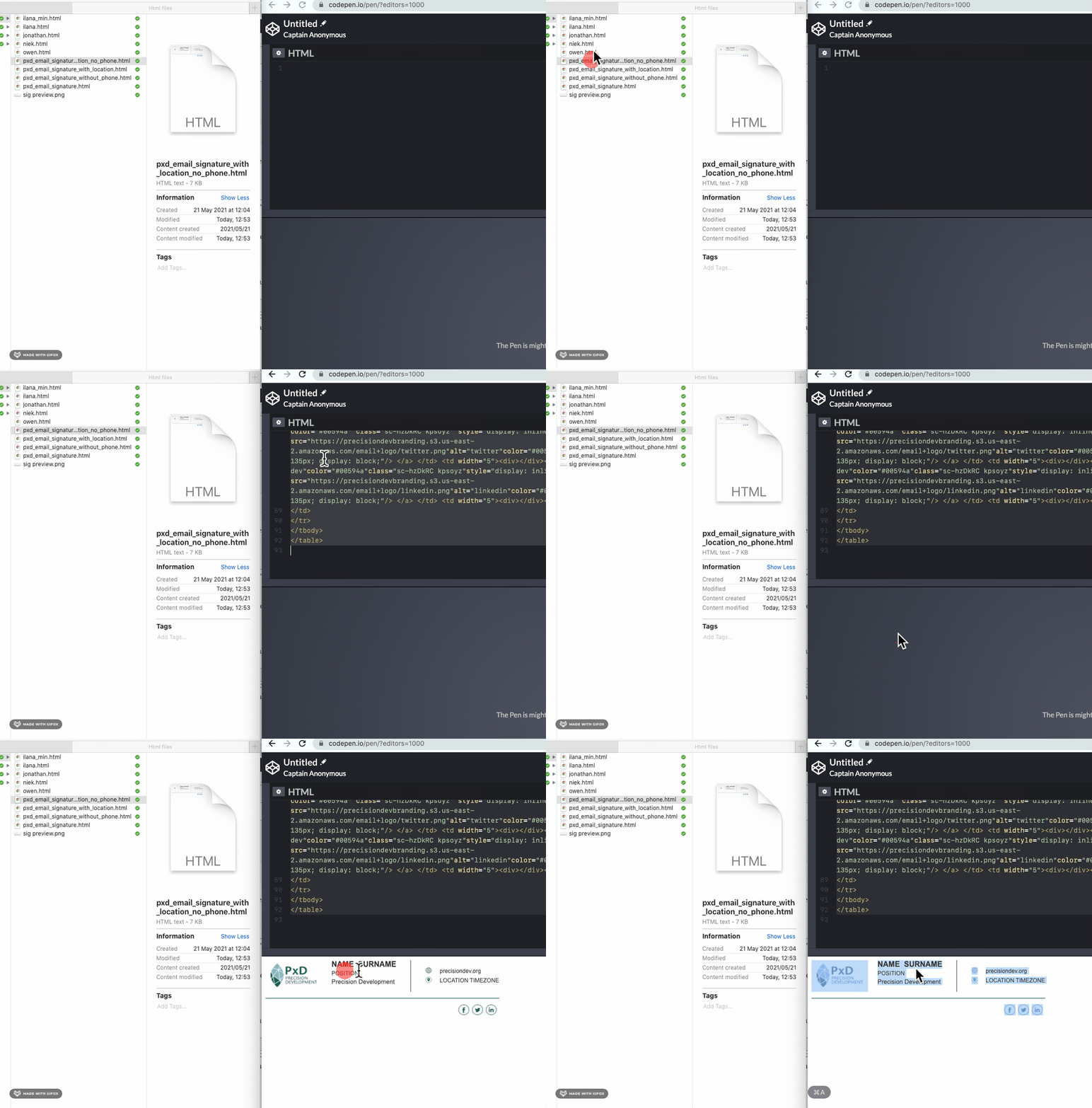
- Open the file in Codepen (you can drag the downloaded file onto the html field, see screen recording below) or use a code editor on your computer.
-
- search for the following words & replace them with your information, making sure not to edit the html around these words:
- ‘NAME’
- ‘SURNAME’ (to add pronouns, there is a section next to the Surname field that can be used)
- ‘POSITION’
- ‘TEL’
- ‘LOCATION’ and ‘TIMEZONE’
- We have added alternative versions, with or without phone number, or locations (see the examples & files below).
- Click anywhere on the generated signature below the html field, select all by using ‘cmd or ctrl + A’, then copy all by using ‘cmd or ctrl + C’. It is important to not manually select everything on the page, by using ctrl or command + A we make sure all the necessary html is copied.
- Go to settings in your Gmail app and scroll down to Signature, paste everything in the field by using ‘cmd or ctrl + V’
- Test your new signature. If you encounter any issues, please reach out to Niek.


PxD email signature for Gmail
This version includes:
Phone number
Location & timezoneDownload file (html file, 8 KB)
PxD email signature for Gmail - without location or timezone
This version does not include:
Location & timezoneDownload file (html file, 7 KB)
PxD email signature for Gmail - without location, timezone or phone number
This version does not include:
Phone number
Location & timezoneDownload file (html file, 5 KB)
PxD email signature for Gmail - with location & timezone - no phone number
This version does not include:
Phone numberDownload file (html file, 7 KB)